What to Learn Before Using Claude Code
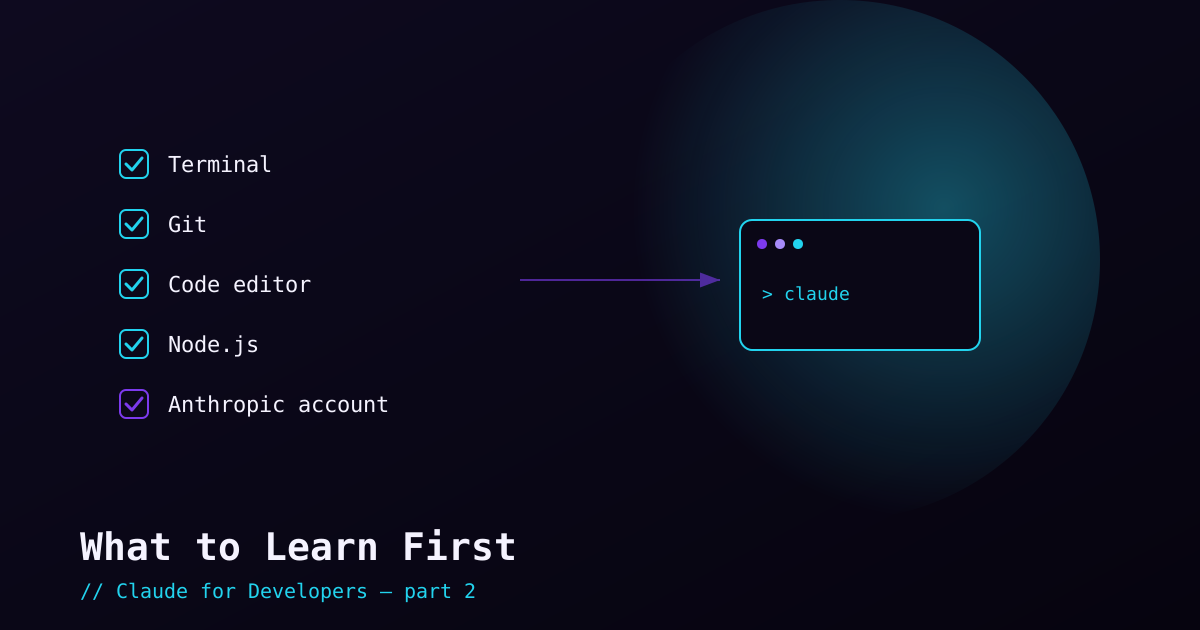
Claude Code does not assume you know anything about AI. But it *does* run in your terminal, edit files in a real project, and lean on Git to keep your work safe. The developers who feel at home with it on day one are the ones comfortable with a few ordinary tools. None of this is hard, and you do not need mastery — just enough to not feel lost. Here is the whole list.
1. The terminal (command line)#
Claude Code is, first and foremost, a command-line program. You start it by typing claude in a terminal, and you interact with it there. You do not need to be a shell wizard — but you should be comfortable opening a terminal, moving between folders, and running a command.
The handful of commands worth knowing:
pwd            # print working directory — "where am I?"
ls             # list files in the current folder (dir on Windows cmd)
cd my-project  # change into a folder
cd ..          # go up one folder
clear # clear the screen2. Git (and a little version control sense)#
This is the most important item on the list. Claude Code edits files in your project — sometimes several at once. Git is your safety net. When changes are committed to Git, you can review exactly what Claude changed and undo anything you do not like with a single command. Working without Git is like editing without an undo button.
You do not need advanced Git. You need to understand and run these:
git status— what has changed since the last commitgit diff— the exact lines that changed (this is how you review Claude’s work)git addandgit commit— save a checkpoint of your workgit restore/git checkout— throw away changes and go back to the last commit- The idea of a branch — an isolated line of work you can experiment on safely
3. A code editor#
Claude Code works in the terminal, but you will want a real editor open alongside it to read files, review diffs, and make manual tweaks. Visual Studio Code is the most common choice and has a dedicated Claude Code extension we will cover later. JetBrains IDEs (IntelliJ, PyCharm, WebStorm) are also first-class. Any editor works — but if you have none, install VS Code.
4. Node.js (for installation)#
Claude Code is distributed through npm, the Node.js package manager, so you need Node.js installed. If you do JavaScript or TypeScript work you already have it. To check, run:
node --version   # should print something like v20.x or v22.x
npm --version    # the package manager, comes with Node
If those print version numbers, you are set. If they say "command not found," install Node from nodejs.org (pick the LTS version) — or use a version manager like nvm if you prefer. The install post walks through this if you need it.
5. An Anthropic account (and how access works)#
To use Claude Code you need to authenticate, and there are two common paths. You only need one:
- A Claude subscription (Pro, Max, Team, or Enterprise) — you log in through the browser, the way you sign into any app. Simplest for individuals.
- An API key from the Claude Console — a token you configure once. Common for organizations and for billing usage directly.
Do not worry about choosing now — the install post covers both. Just know that you will sign in or paste a key once, and then you are done.
The mindset that matters most#
Beyond tools, one habit separates people who thrive with Claude Code from people who get frustrated: stay in the loop. Read what it proposes. Review the diffs. Run the tests. Push back when something looks wrong. Claude is fast and capable, but you are the engineer who is accountable for the result. Treat it like a sharp pair-programmer, not a vending machine.
Quick self-check#
Before moving on, make sure you can: open a terminal and cd into a folder; run git status and git diff in a project; open files in an editor; and get a version number from node --version. If all four are true, you are ready.
What’s next#
With the basics in place, the next post is the fun one: installing Claude Code and logging in — on Windows, macOS, and Linux — then running it for the very first time. Bring a small project (or an empty folder) to follow along.