Claude Code in Your IDE: VS Code & JetBrains
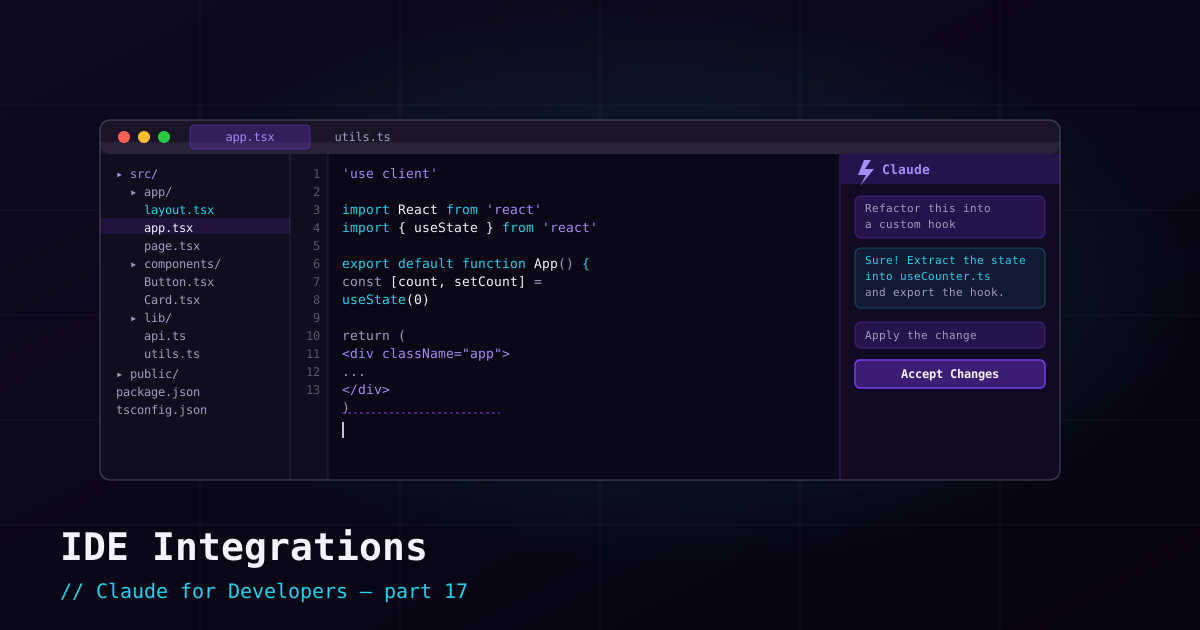
The terminal is the heart of Claude Code, but you do not have to leave your editor. Official integrations for VS Code and JetBrains IDEs put Claude Code right next to your code, with diffs rendered inline and a panel you open with a keystroke. The underlying agent is identical — this is about the feedback loop.
Why use the IDE integration#
- Inline diffs — see Claude’s proposed changes in your editor’s familiar diff view, not just as text in a terminal.
- Editor context — Claude can see what file and selection you are looking at, so "fix this function" just works.
- One-keystroke access — open Claude without switching windows.
- Side-by-side flow — read code on the left, converse with Claude on the right.
VS Code#
Install from the Extensions view:
- Open the Extensions panel (
Ctrl+Shift+X, orCmd+Shift+Xon macOS). - Search for "Claude Code" and click Install.
- Open Claude from the spark icon in the editor toolbar, the status bar, or the activity bar.
The shortcut to toggle focus between your editor and Claude is `Cmd+Esc` (macOS) / `Ctrl+Esc` (Windows/Linux). You can also open it in a new tab and use @-mentions to reference files.
JetBrains (IntelliJ, PyCharm, WebStorm, …)#
For the JetBrains family:
- Make sure the Claude Code CLI is installed and working first.
- Open Settings → Plugins → Marketplace, search "Claude Code", and Install.
- Restart the IDE when prompted.
- Launch Claude with `Cmd+Esc` / `Ctrl+Esc`, or the Claude Code button in the IDE.
It supports the common JetBrains IDEs — IntelliJ IDEA, PyCharm, WebStorm, PhpStorm, GoLand, and others.
Terminal or IDE — which should you use?#
Both, depending on the moment. The terminal is great for focused agentic runs and scripting; the IDE shines when you are actively reading and tweaking code and want diffs inline. Many developers keep a terminal session open for big tasks and use the IDE panel for quick, in-context help. There is no wrong answer — it is the same Claude either way.
What’s next#
Interactive use — terminal and IDE — is one half of Claude Code. The other half is headless mode: running it non-interactively in scripts and CI pipelines, which we cover next.